
How It Works
You can start orders from multiple entry points including assortments, catalogs, or the orders page. This guide covers the most common scenario: starting from the products page. The ordering process allows you to manage multiple orders simultaneously, add products efficiently, and utilize different cart views for optimal order management. Wherever you start an order, you'll land into the products page to add products and continue with the order flow.
Before You Start
Make sure you have the following:
-
Access to RepSpark Flow (toggle the "RepSpark Flow" checkbox)
-
Customer account information or ability to search customers (configured customer profile)
-
Required product information (SKUs, quantities, delivery dates)
-
Shipping and billing details ready
Steps
Step 1 - Start Your Order
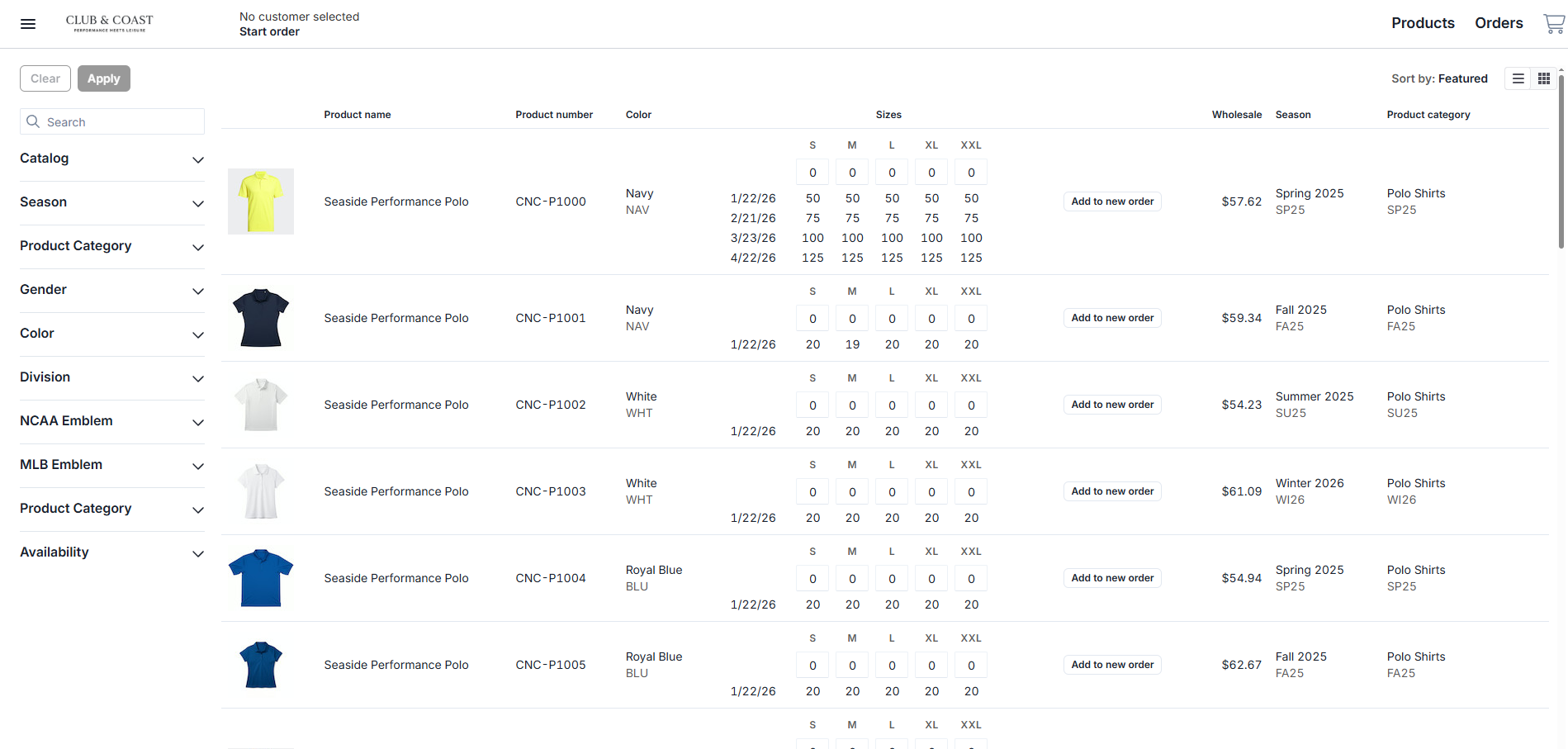
On the products page, you have two options to begin:
-
Click Start order at the top to configure your order header first
-
Click Add to new order next to any product to start immediately
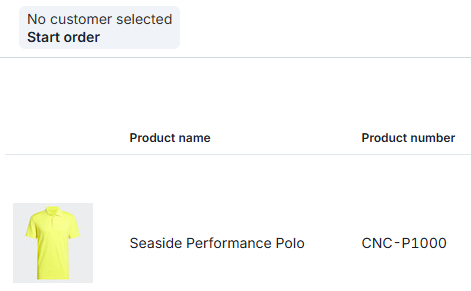
Step 2 - Configure Order Header
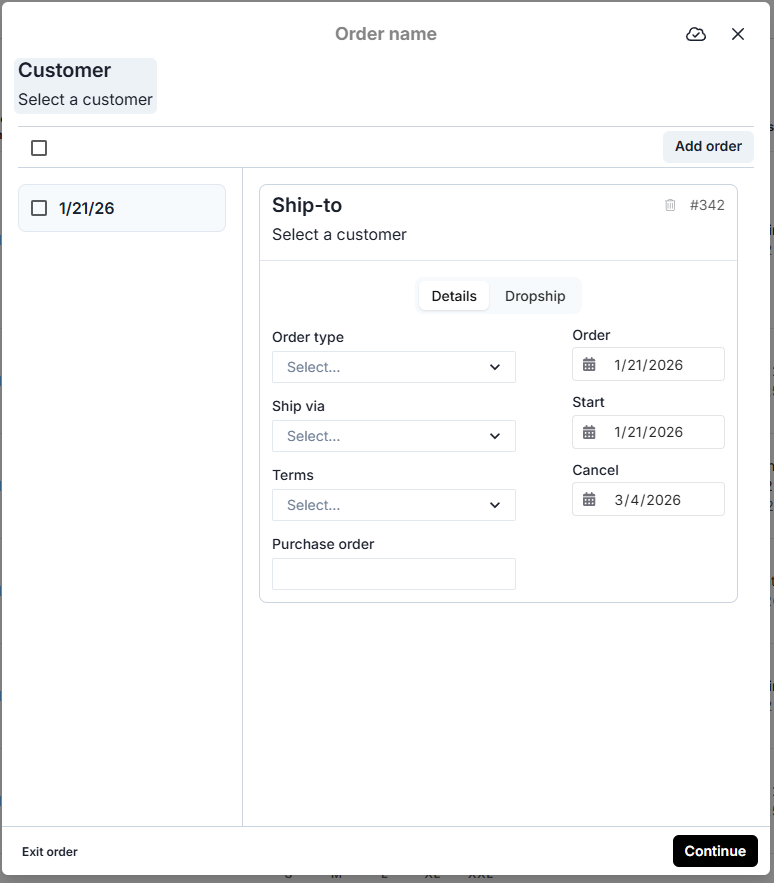
In the order header modal:
-
Select your customer using the search function
-
Rename the order group if needed (helpful for organizing multiple orders)
-
Add multiple orders to the single order group using the “Add order” button
-
Configure Details tab:
-
Order type (At Once, Future, etc.)
-
Ship via method
-
Payment terms
-
Purchase order number
-
-
Configure Dropship tab if applicable:
-
Enter alternate shipping address
-
Your changes save automatically. Click Continue to start adding products.
Step 3 - Filter and Find Products
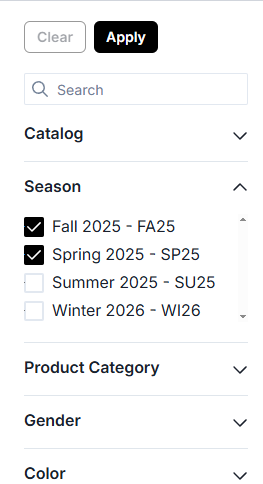
Navigate the product catalog efficiently:
-
Use the left sidebar filters to narrow down products
-
Search for specific products using the search bar (accepts product names or SKUs)
-
Clear filters using the Clear button when needed
Tip: Filters stack on each other. If you don't see expected products, check that you haven't over-filtered your results
Step 4 - Choose Your Shopping View
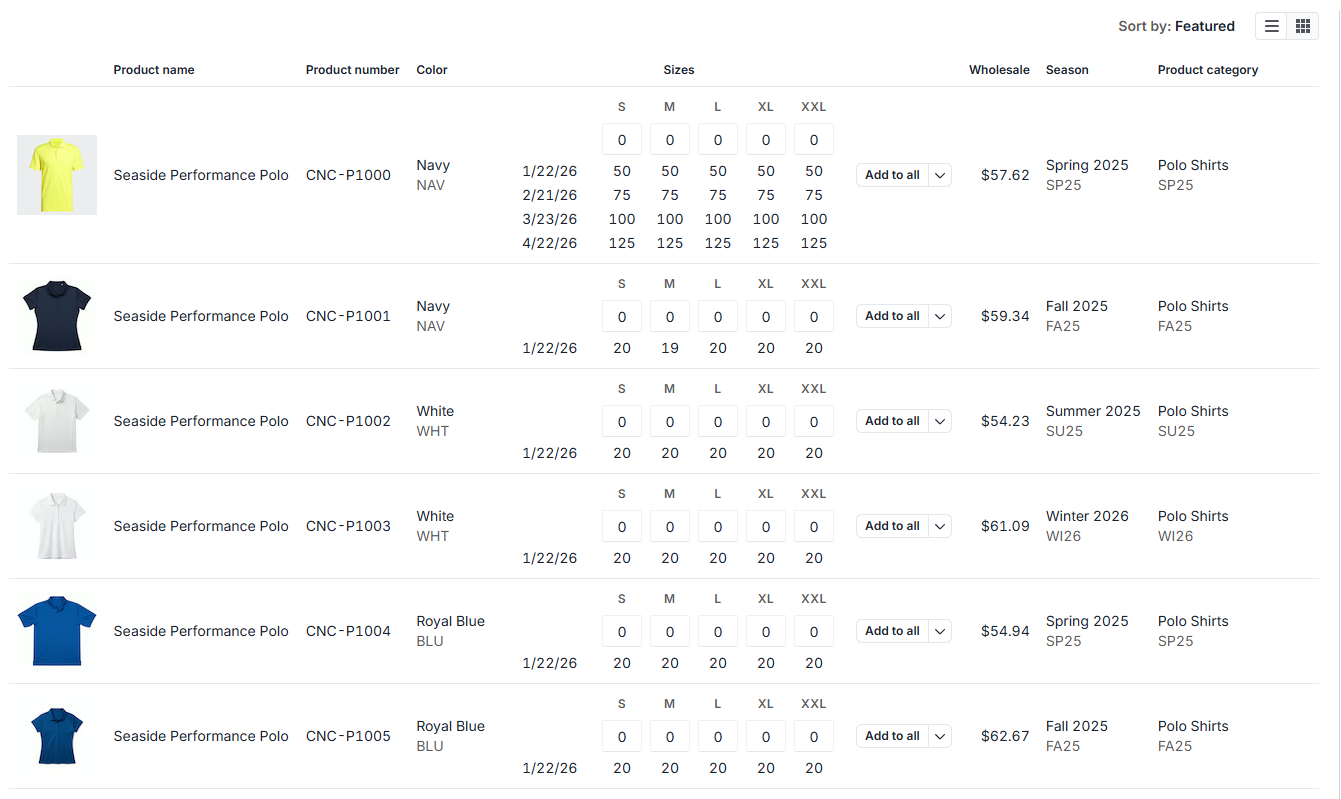
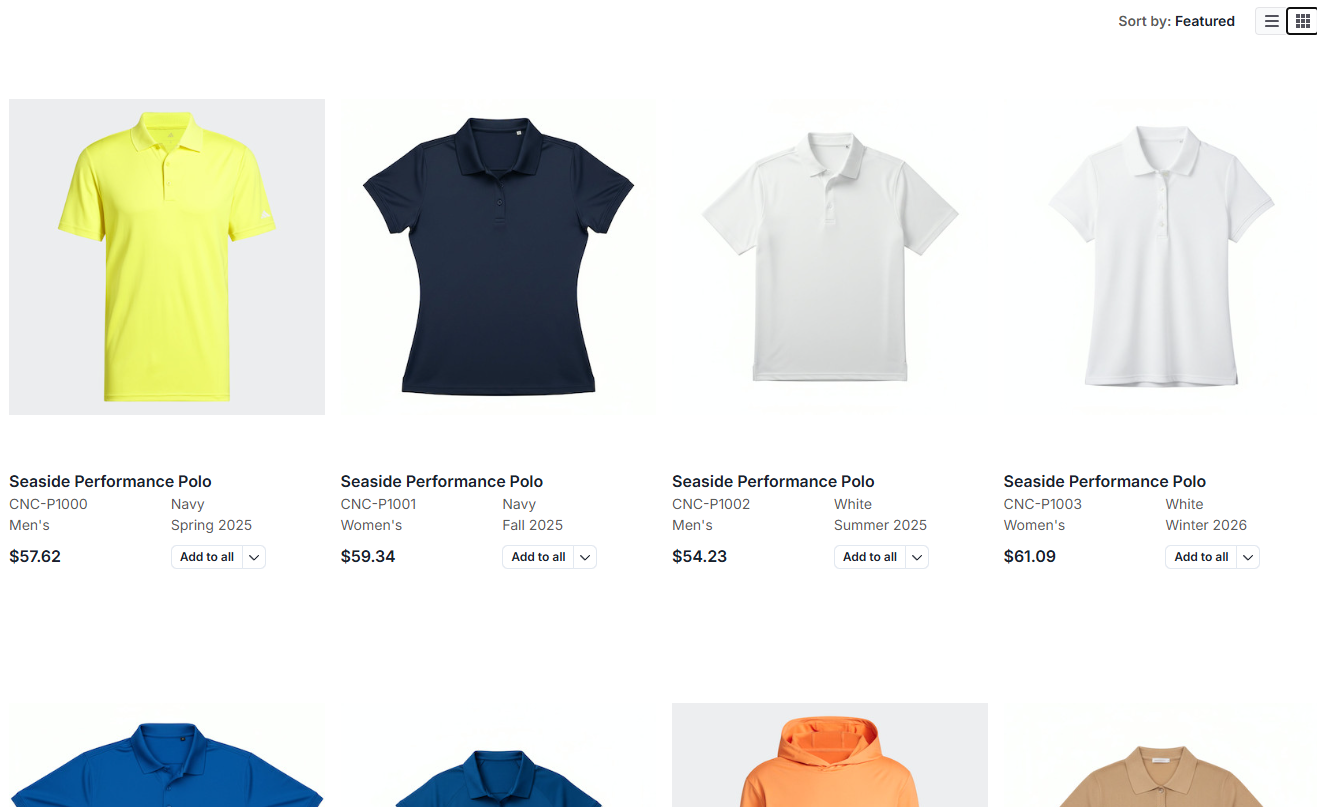
Select your preferred product display:
-
Grid view: Visual layout with product images
-
List view: Detailed table format with all product information visible
-
Toggle between views using the icons in the top right
Step 5 - View Product Details
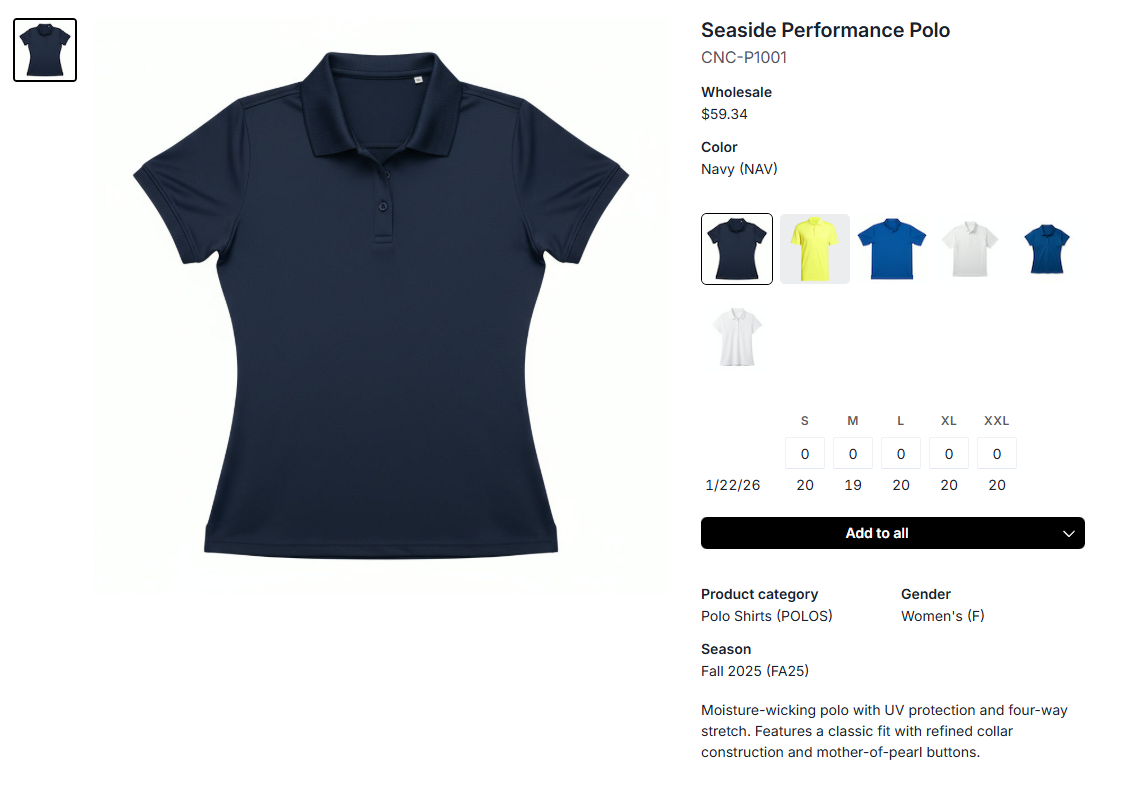
Click any product to open its details page where you can:
-
View full product specifications
-
Check inventory availability
-
See wholesale and retail pricing
-
Review product images
-
Access size and color options
Tip: Open product details in a new tab to keep your main shopping page accessible. Your order saves across all tabs in your session
Step 6 - Add Products to Order
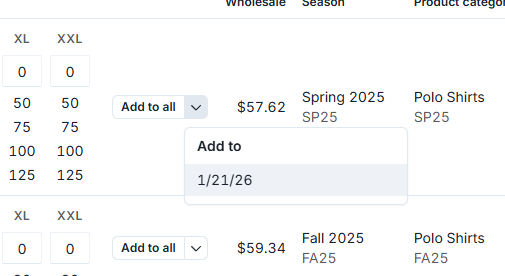
Two methods for adding products:
-
Direct quantity entry: Type quantities directly in the size fields on the product listing
-
Quick add: Click Add to new order to add products, then adjust quantities in the cart
We cover how to best utilize the selected orders sidebar here.
Step 7 - Manage Your Cart
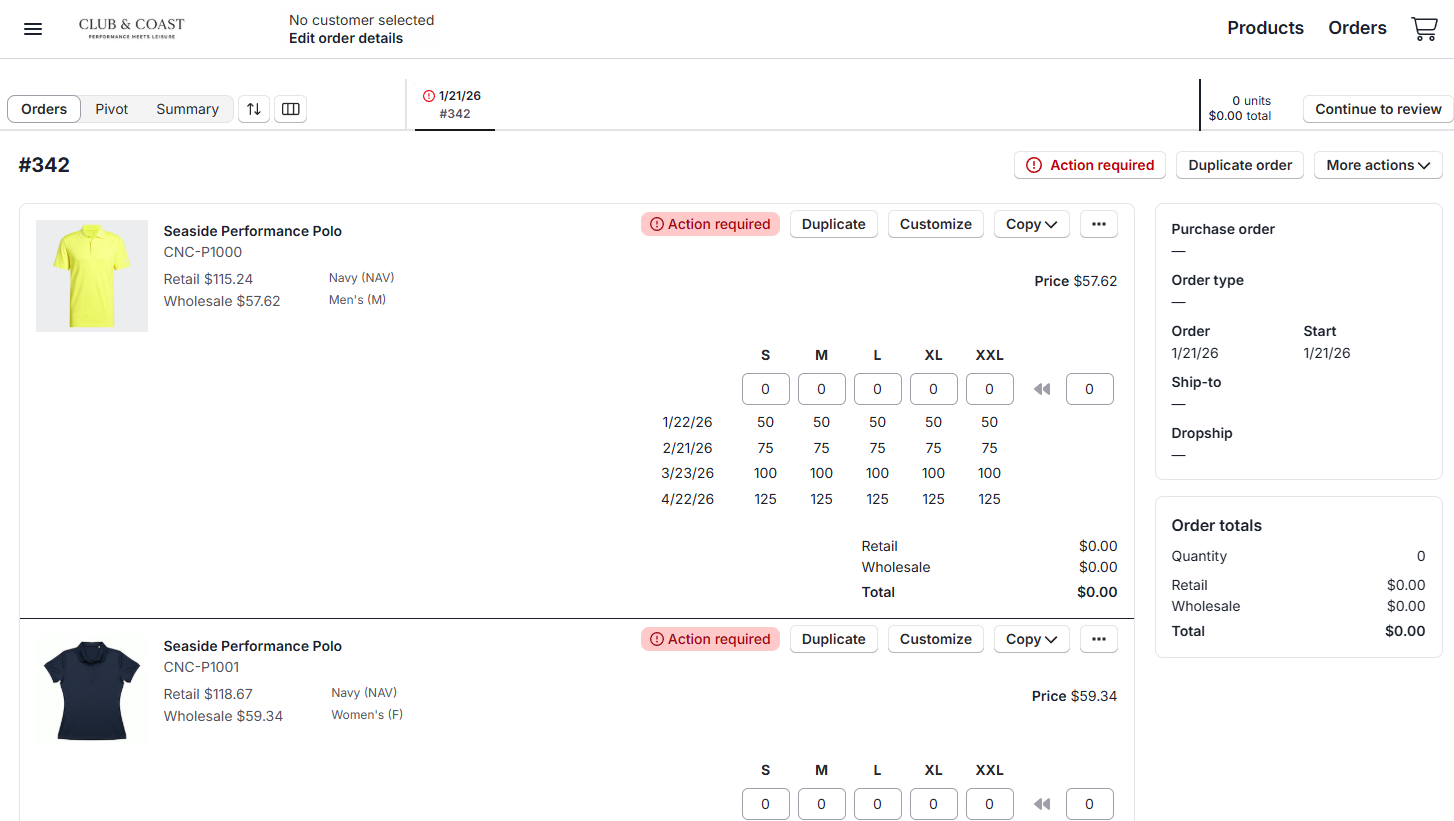
Click on the Cart tab to review and modify your orders.
Choose from four cart views based on your needs:
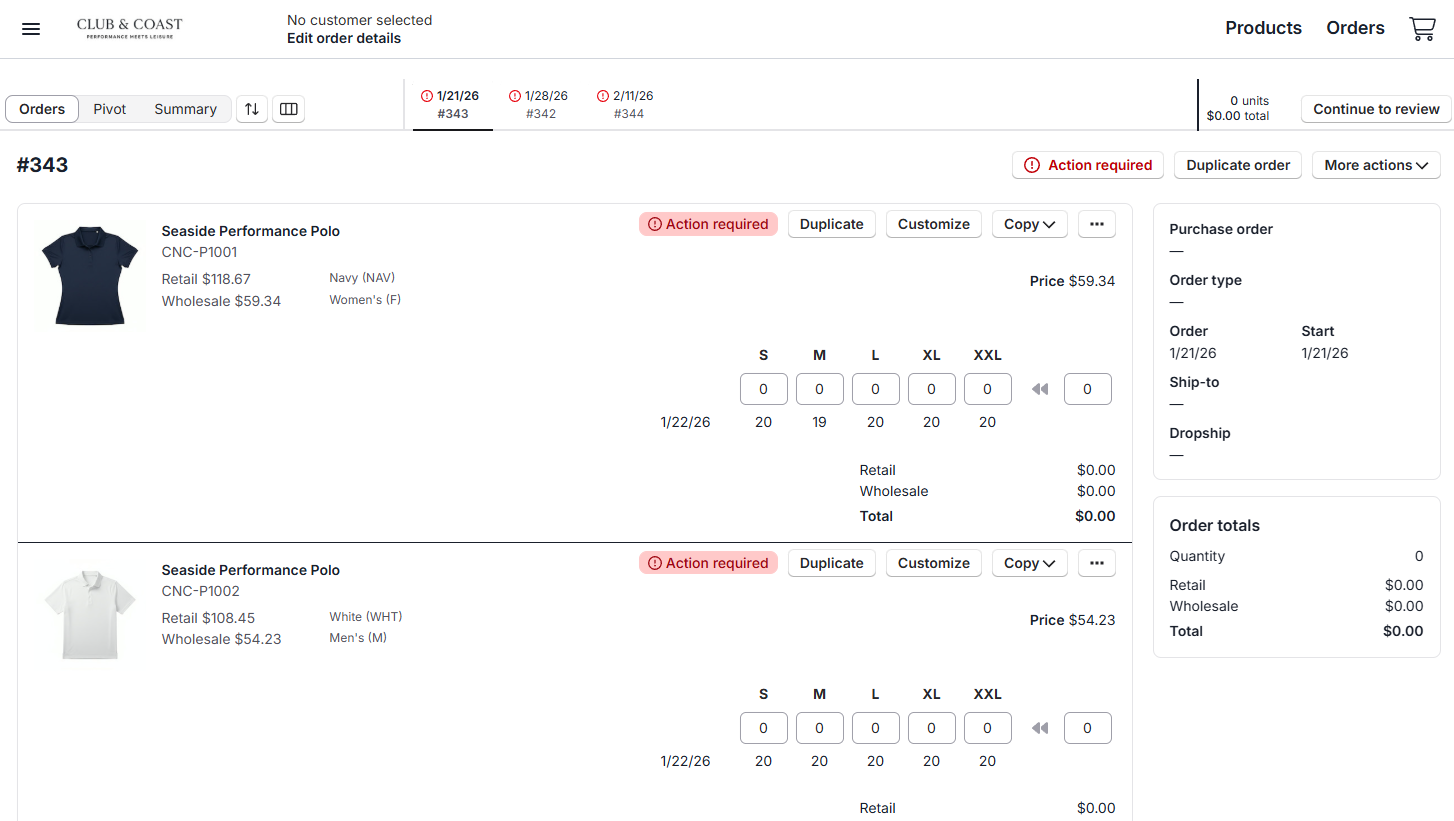
Orders View
-
Detailed individual order management
-
Edit quantities by size
-
Add customizations
-
Address validation errors
-
View pricing and totals
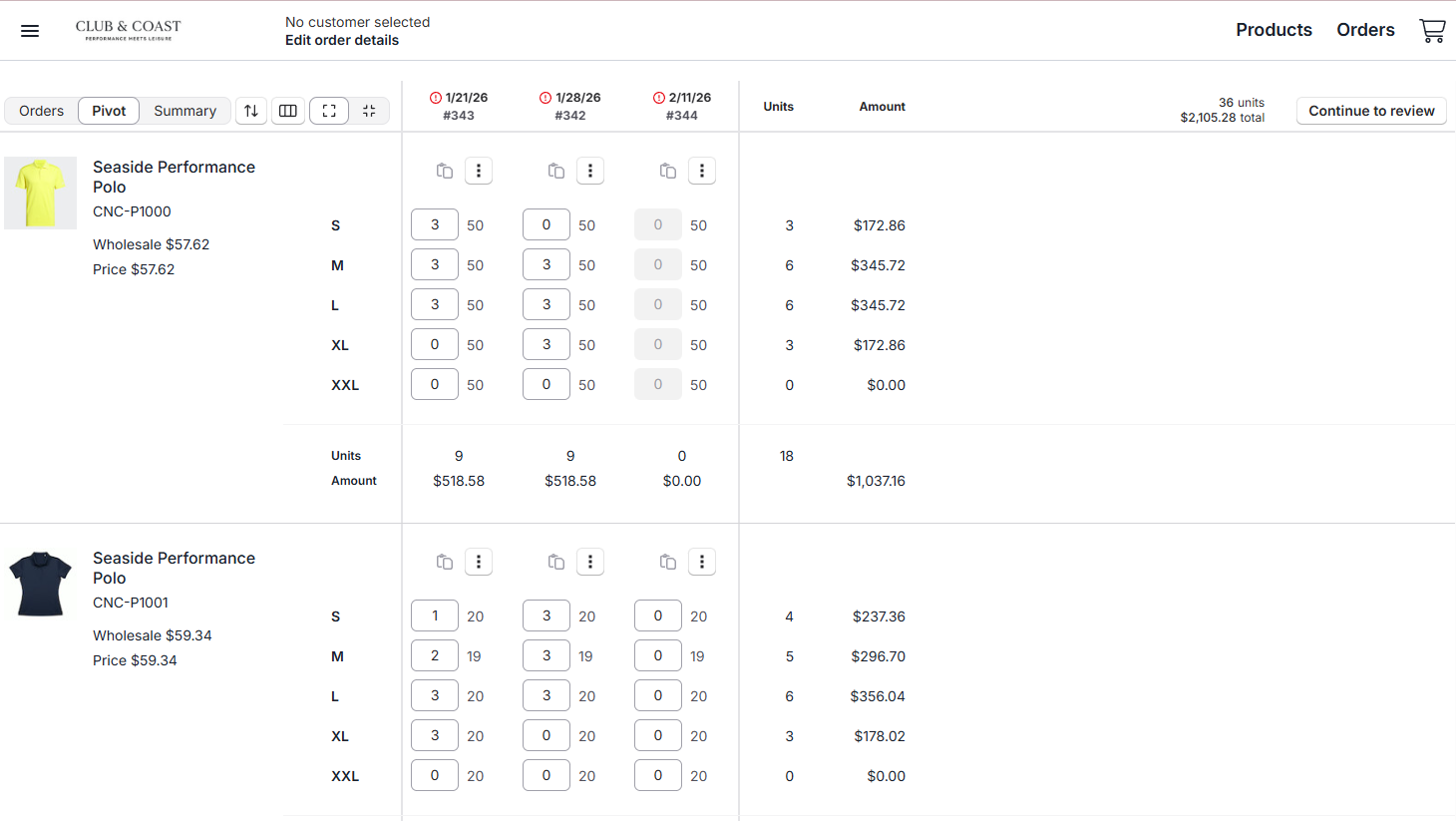
Pivot View
-
Spreadsheet-style layout
-
Quickly enter quantities across multiple orders
-
Ideal for bulk ordering
-
Tab through multi-date orders efficiently
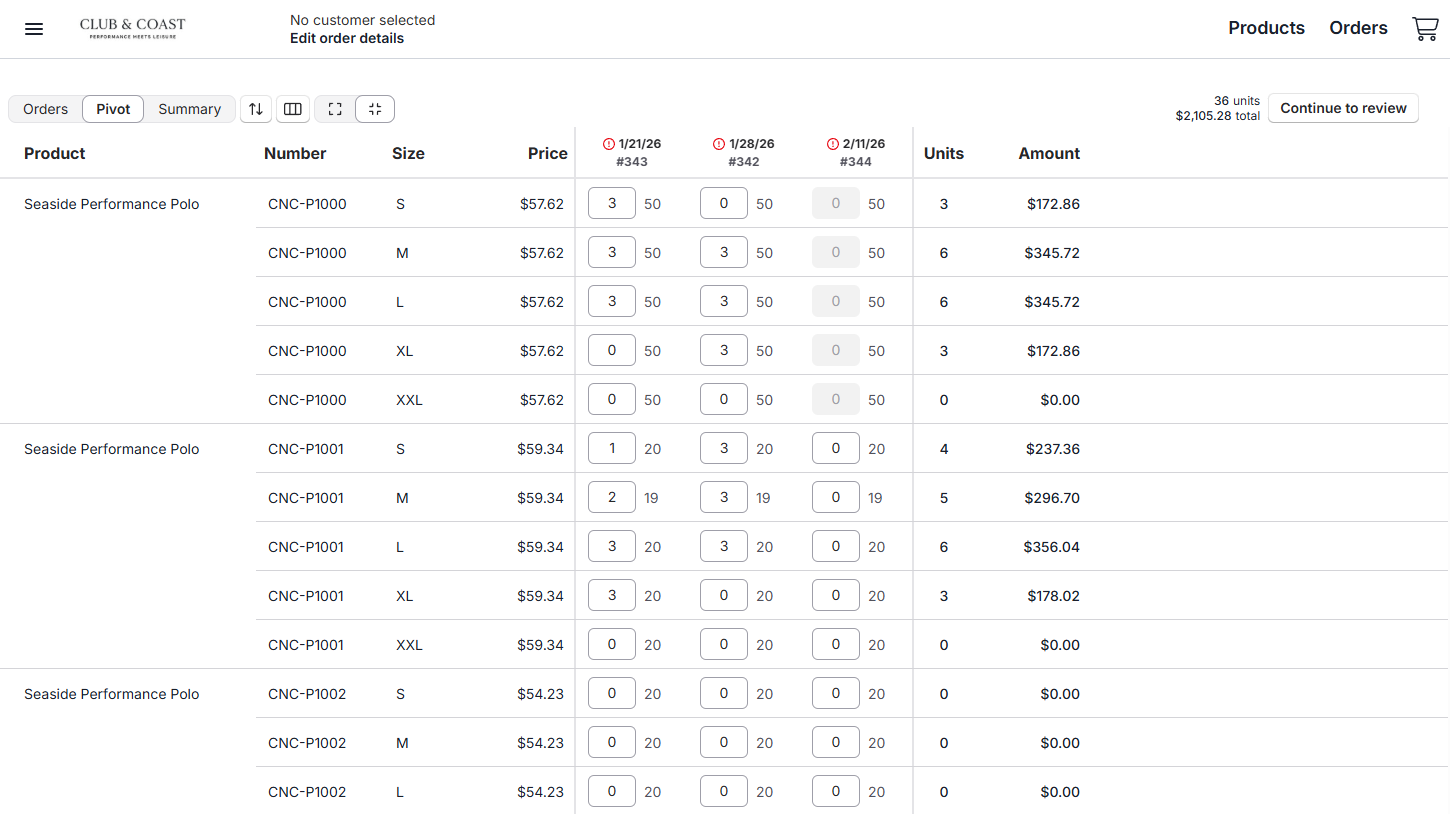
Compact Pivot View
-
Condensed spreadsheet format
-
Quick quantity entry across orders
-
Minimal scrolling required
-
Best for experienced users
Summary View
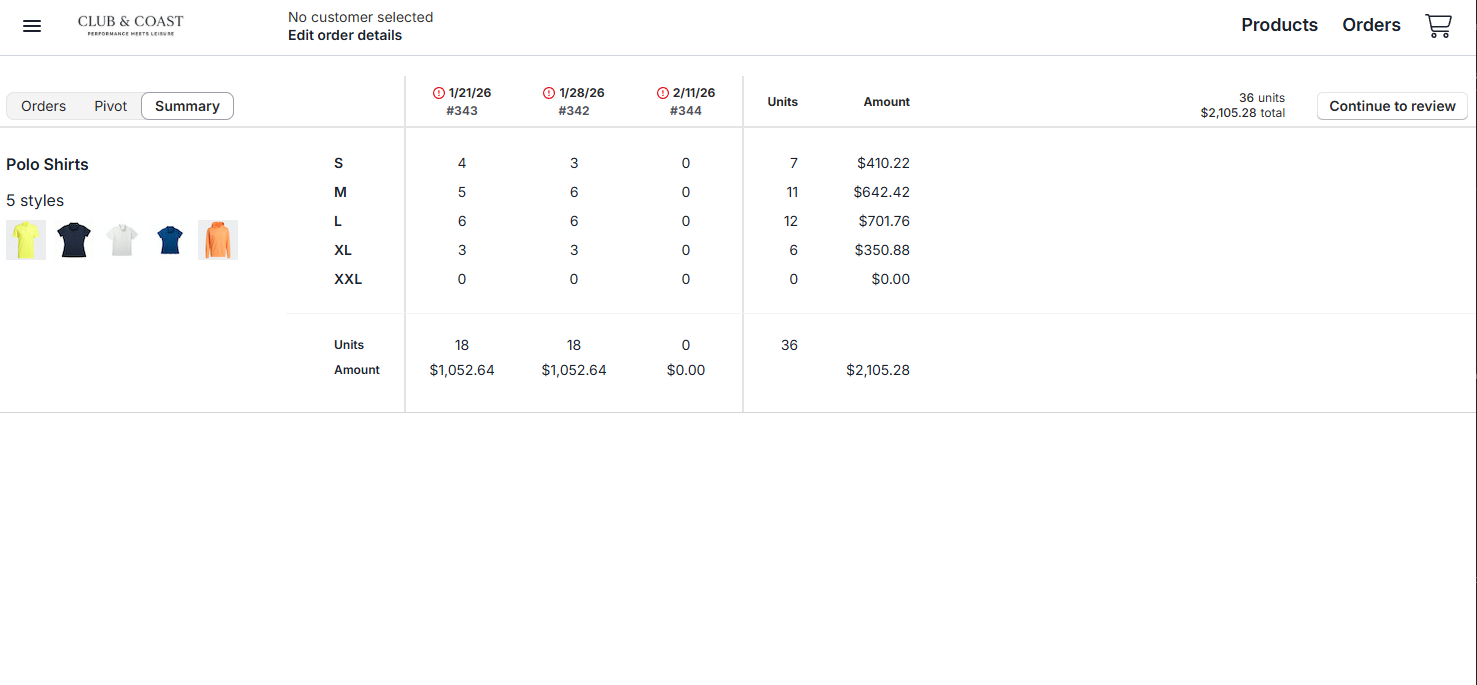
-
Products organized by category
-
Consolidated totals across all orders
-
Budget overview
-
Unit counts and pricing summaries
Step 8 - Resolve Validation Errors
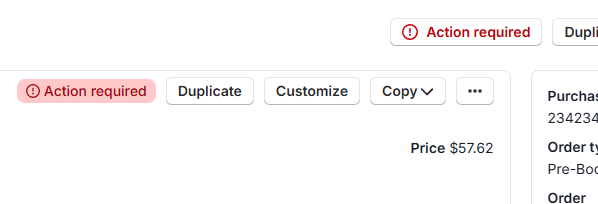
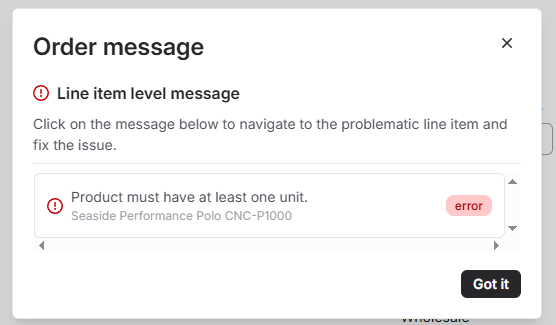
You may see validation errors that you need to take action to resolve, or informational or warning messages that you need to review before proceeding with order submission. Click into the “Action required” modal to see
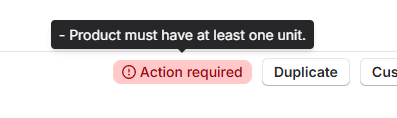
If there are validation errors, you'll see an Action required indicator. Click it to view specific messages and navigate directly to items needing adjustment. You can also hover over the line item level error to see the specific errors and resolve them.
Step 9 - Review Your Order
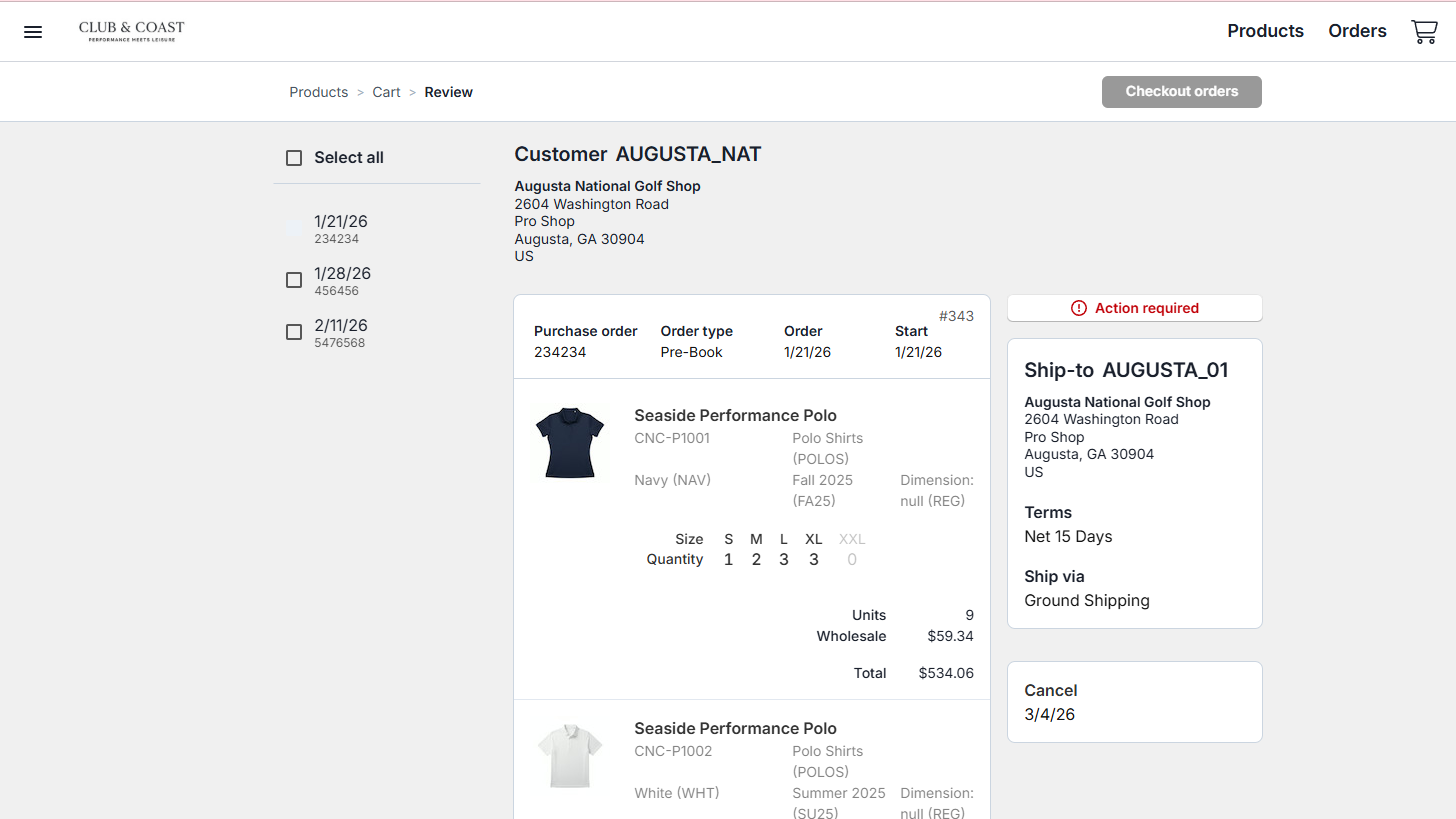
Click Continue to review to proceed to the final review page.
Review all order information, if applicable:
-
Customer and shipping details
-
Product quantities and sizing
-
Pricing and totals
-
Delivery dates
-
Payment terms
Step 10 - Submit Your Order
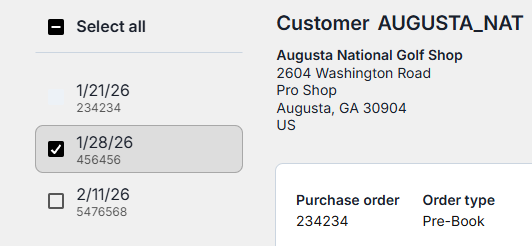

On the review page:
-
Select the checkbox next to each order you want to submit
-
If you only have one order in your order group, it’ll automatically be selected
-
-
You can submit one, several, or all orders in your order group
-
Click Checkout order to proceed
Step 11 - Thank You Page
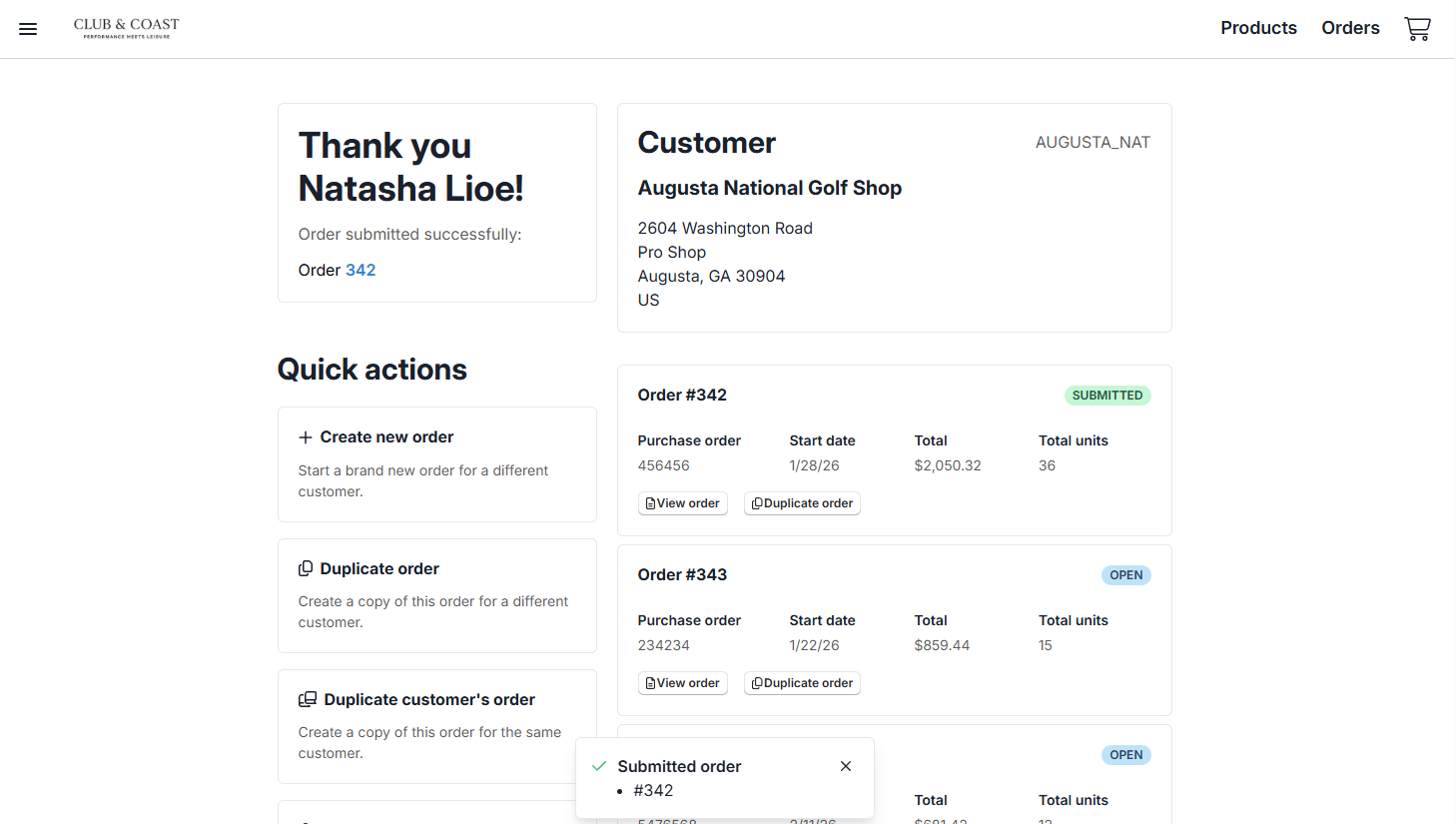
After successful submission, you'll see the confirmation page showing:
-
Order confirmation numbers
-
Summary of submitted orders
-
Quick actions for next steps
Quick Actions Available:
-
Create new order - Start a fresh order for a different customer
-
Duplicate order - Copy this order for a different customer
-
Duplicate customer's order - Create a reorder for the same customer
-
View order - Review order details in My Orders
-
Download order PDF - Save or print order PDF
Your submitted orders will appear in the Orders page with "Submitted" status.