
Overview
Assortments are curated product collections that help you quickly find and order specific groups of products. When you shop from an assortment, you can browse the products in that collection and add them directly to your current order.
How it works
Assortments provide a streamlined way to shop pre-selected product groups without needing to browse the entire catalog. When you select an assortment, the products page automatically filters to show only items in that collection. You can continue to refine your view using the standard product filters, and add items to your order using the familiar products page interface.
Before you start
Make sure you have access to the brand's assortments page. Your brand admin controls which assortments are available to you.
Steps
Step 1 - Navigate to the Assortments page
From the brand navigation, click Products > Assortments or go directly to /<brand-name>/assortments
Grid view: 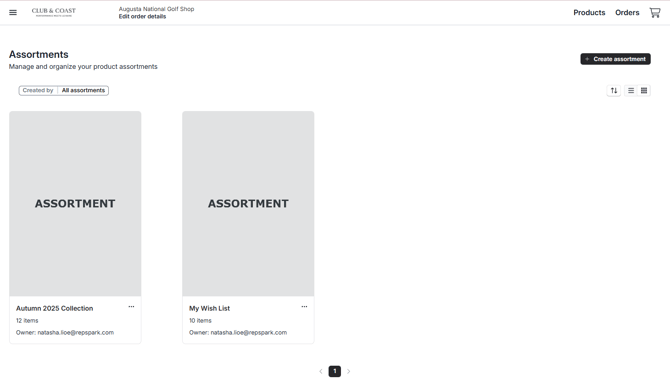
List view: 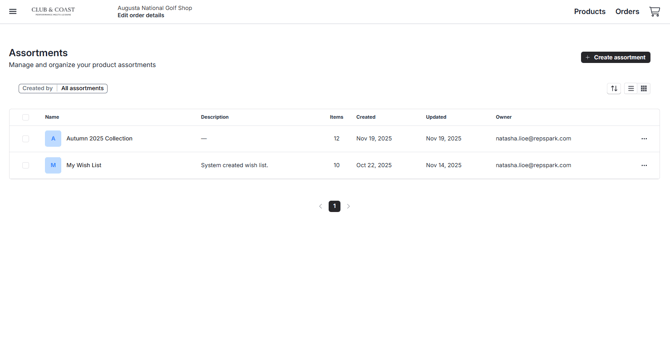
Step 2 - Select the assortment you want to shop
Click on the assortment card to view its products. This will take you to the products page with the assortment filter already applied.
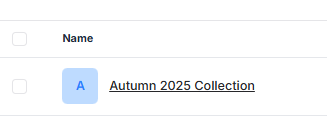
Step 3 - Browse and filter products
The products page will display only items from your selected assortment. Use the filters on the left sidebar to further narrow your selection by catalog, season, product category, color, or other attributes.
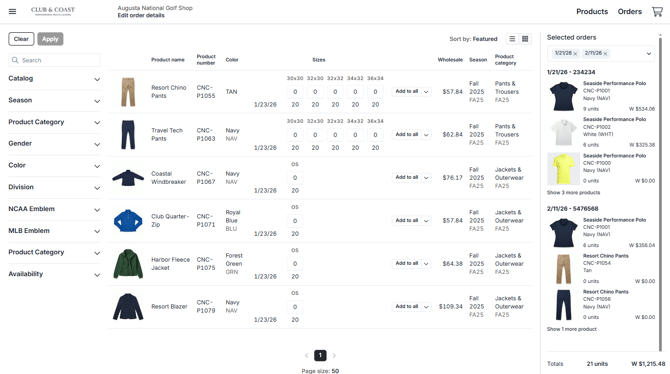
Step 4 - Add products to your order
Add products to your cart using the size grid or "Add to all" dropdown. Because of the always-on cart, products will automatically be added to your current active order.
Tip: If you want to add products to a different order, click Exit order in the order header, then select or create the order you want to use before adding products.
Step 5 - Shop from multiple assortments for one order
You can navigate back to an assortment anytime, and because of your always-on cart, you can add products from multiple assortments into one existing order.
Common issues and solutions
Q: I don't see any assortments when I navigate to the assortments page
Your brand admin may not have created any assortments yet, or you may not have permission to view them. Contact your brand admin for access.
Q: Products are being added to the wrong order
Use the Exit order option in the order header to switch to a different order before adding products. RepSpark remembers your last active order and will continue adding to it by default.
Q: I want to clear the assortment filter and see all products
Click the X next to the assortment filter tag at the top of the products page, or navigate directly to the products page from the main navigation.