
Navigating the Cart
RepSpark 2.0's cart provides multiple views to manage your orders efficiently. Each view serves specific purposes and offers unique functionality to help you review, edit, and organize your products across single or multiple orders. This guide will describe all of the different cart views, their functions, and best practices for using them.
How It Works
The cart adapts to your workflow needs with four distinct views: Orders, Pivot, Compact Pivot, and Summary. You can switch between views using the tabs at the top of the cart, and your sorting and grouping preferences carry across all views for consistency.
Cart Views Explained
Orders View
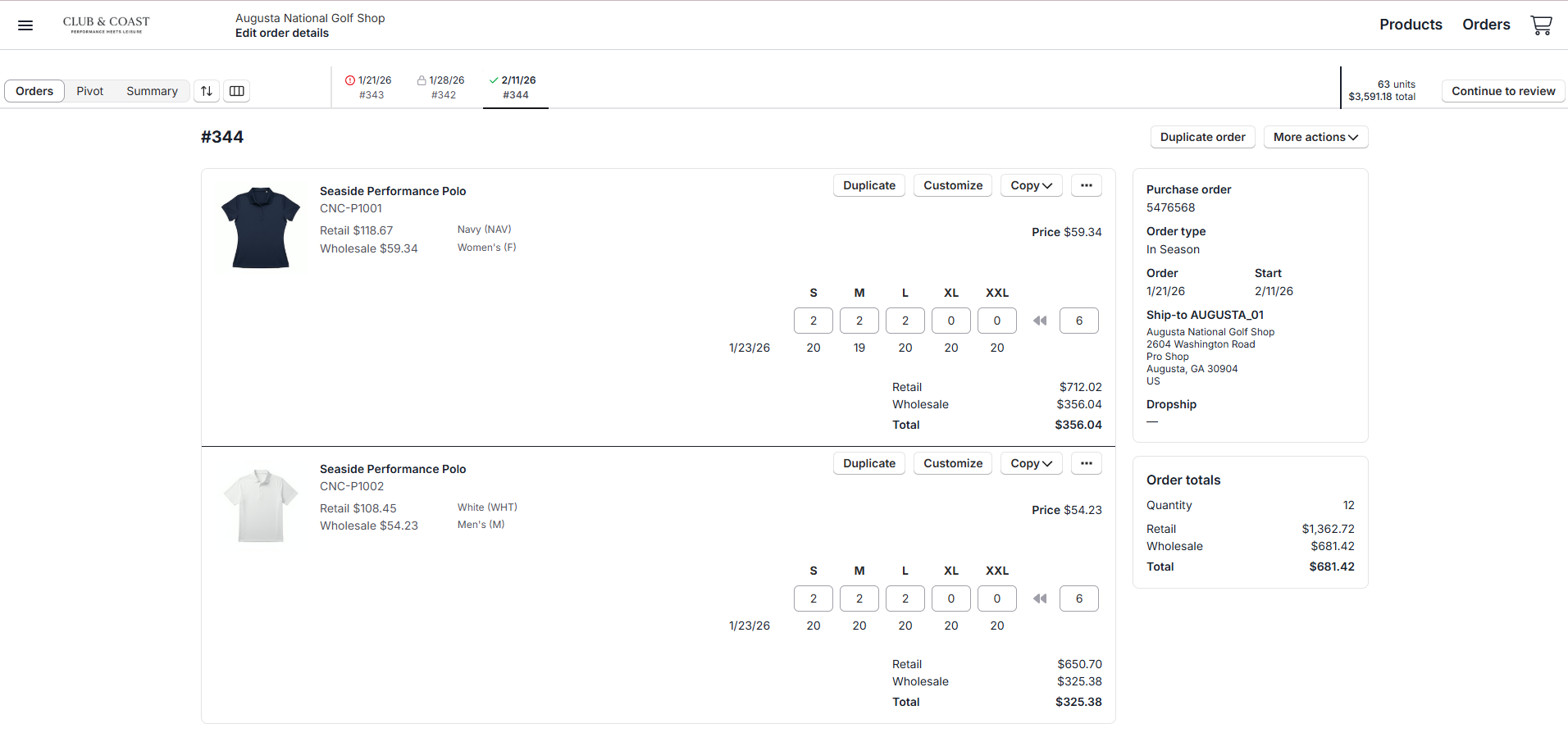
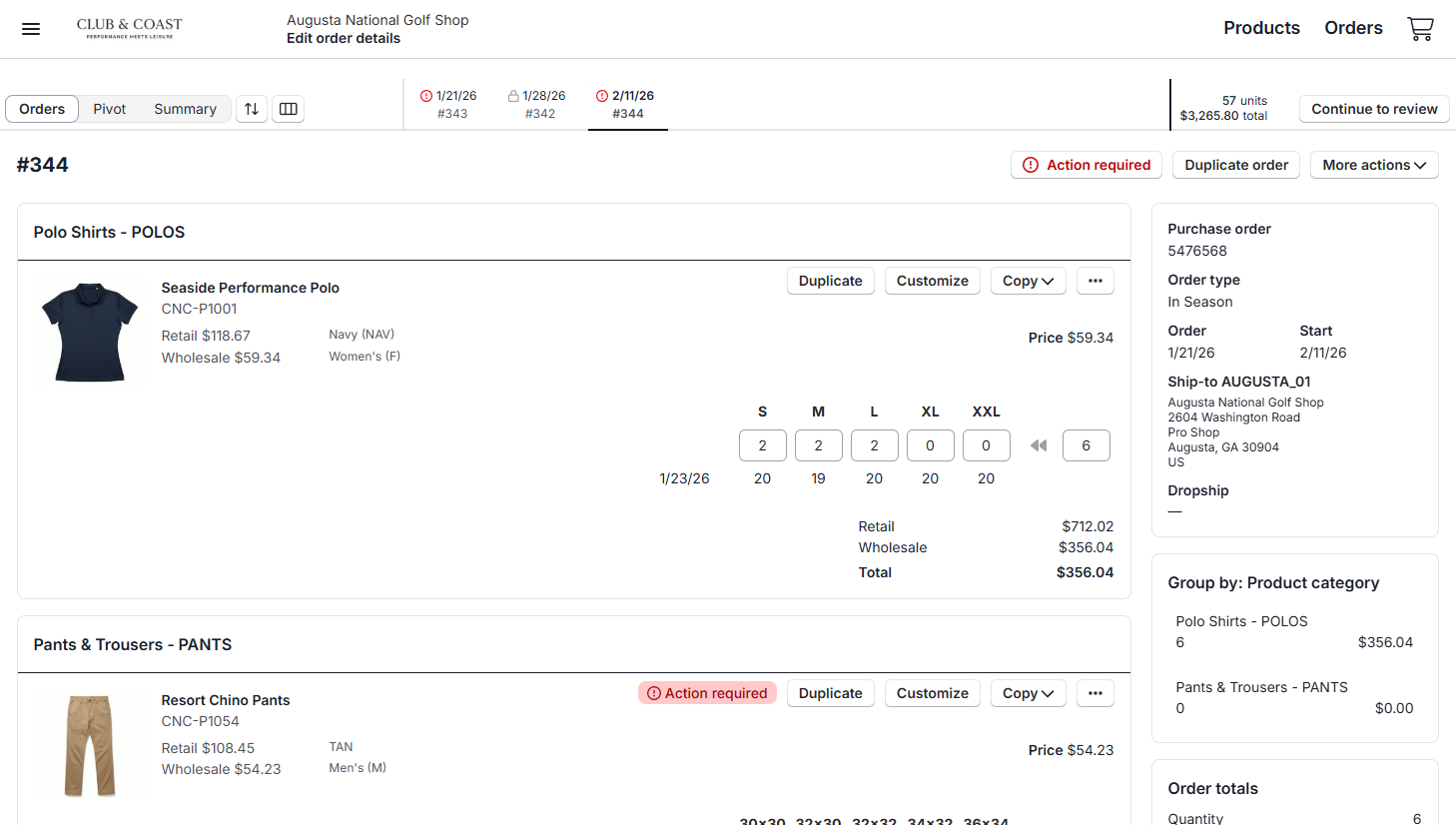
The Orders view displays a traditional e-commerce cart experience, showing all products within a single order. Use the tabs to switch between different orders in your group.

Best for:
- Adding customizations to products
- Managing validation errors
- Detailed product-by-product review
- Adding the same product multiple times with different customizations
Unique Features:
- Customization management - The only view where you can add or edit product customizations
- Duplicate line items - Add the same SKU twice to apply different customizations (e.g., different logos on the same shirt)
- The most robust functionality - This is the only view you can duplicate or delete orders
- Validation messages - View specific error messages and requirements for each line item
Available Actions:
- Sort products by price, name, or SKU
- Group products by category
- Copy size runs to other orders
- Delete individual products
- Adjust quantities by size
- View retail and wholesale pricing
- Delete order in an order group
- Duplicate order in an order group
Grouping Feature: When you group by product category:
- A minimap appears on the right side
- Shows category breakdowns with units and totals
- Provides quick navigation between categories
- Displays subtotals for each product group
Tip: Use Orders view when you need maximum control over individual products or when dealing with customizations and validation errors
Pivot View
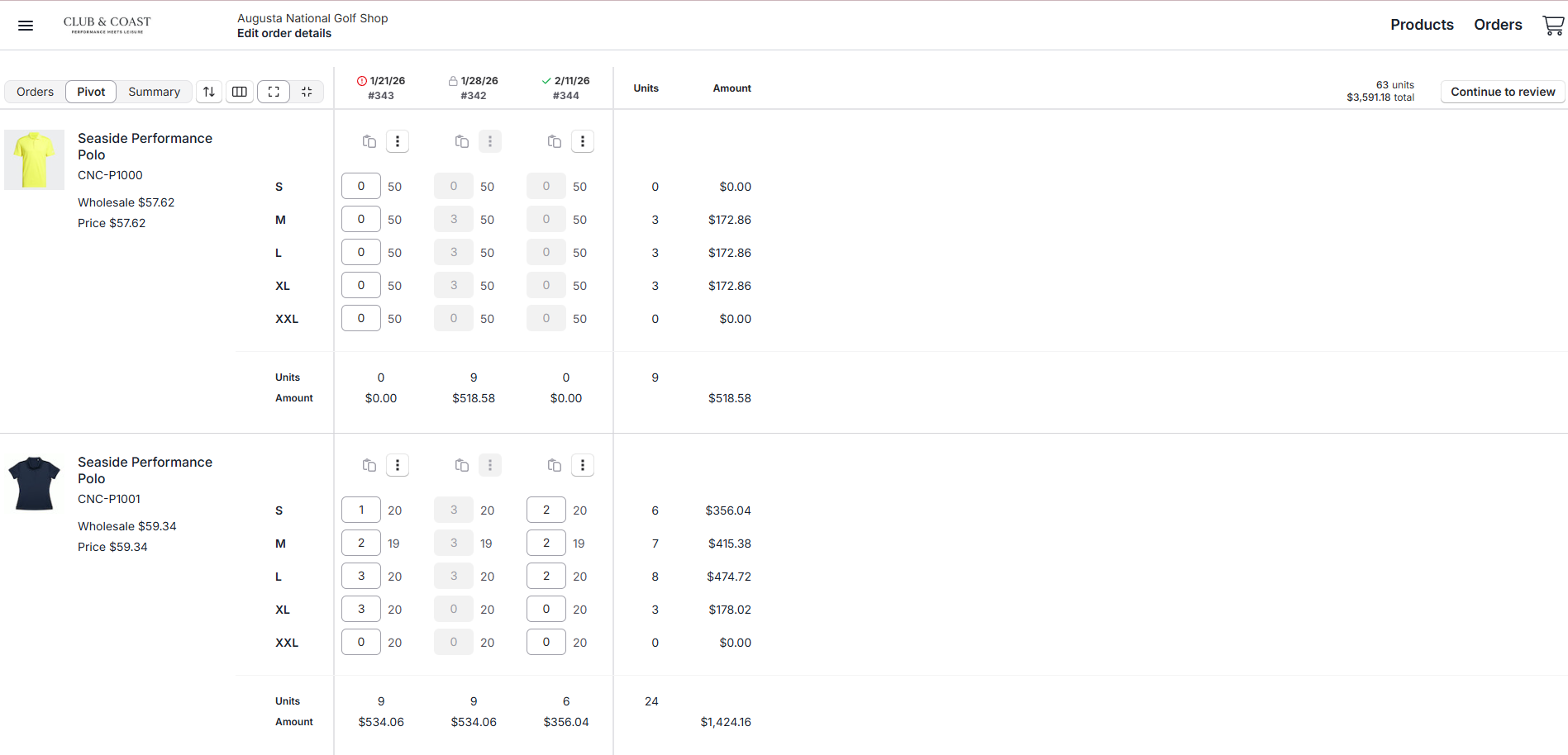
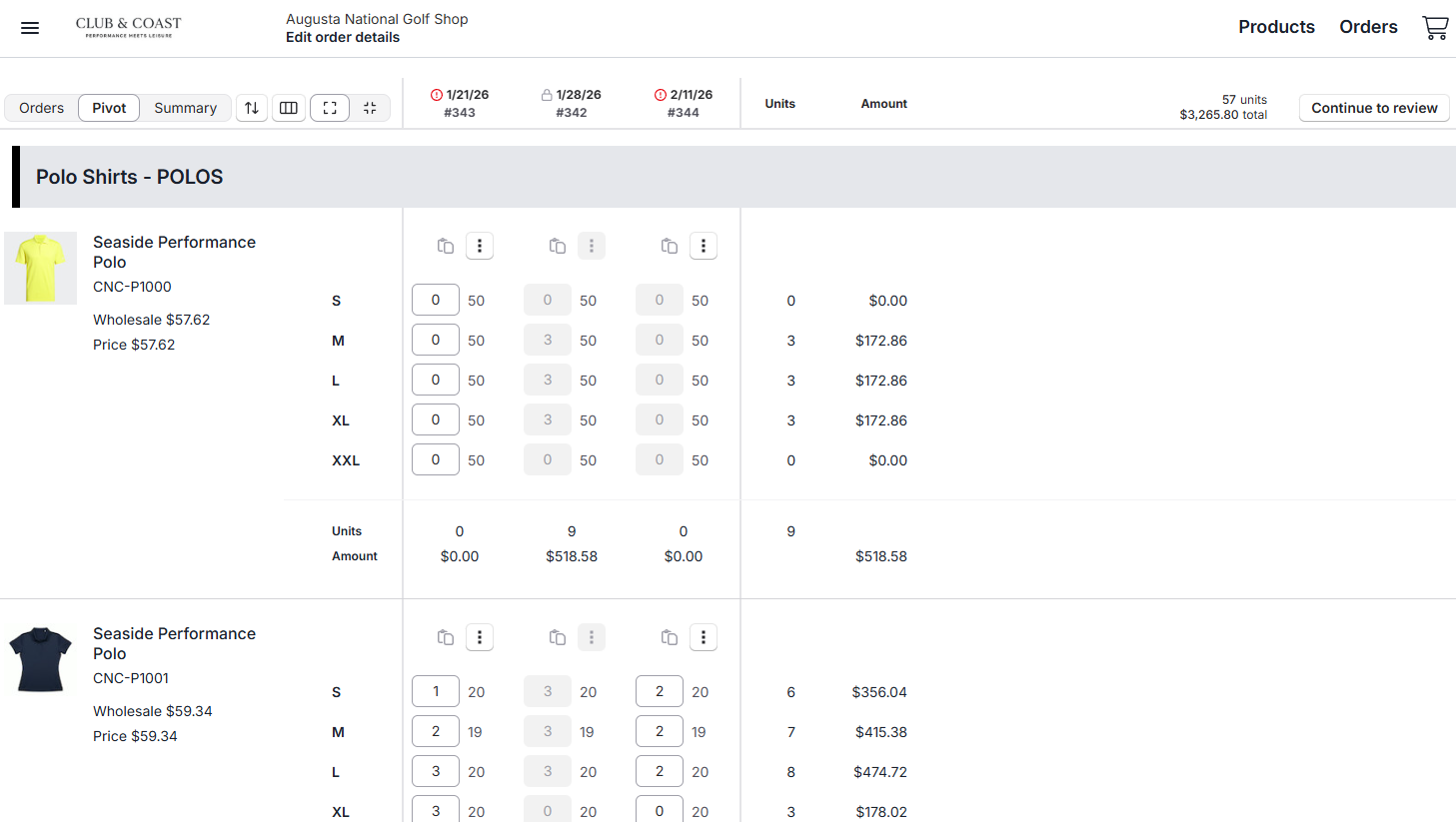
The Pivot view presents your orders in a spreadsheet-style format with orders as columns across the top and products as rows down the left side
Best for:
- Managing multiple orders simultaneously
- Planning quantities across delivery dates
- Bulk quantity entry
- Comparing orders side-by-side
Layout:
- X-axis (horizontal) - Individual orders with delivery dates
- Y-axis (vertical) - Product SKUs with details
- Cells - Quantity input fields for each product/order combination
Available Actions:
- Tab through cells for quick data entry
- Sort products by various criteria
- Group products by category
- Copy size runs between orders
- View units and amounts per order
- See totals across all orders
Navigation Tips:
- Use Tab key to move between quantity fields
- Enter quantities directly in cells
- Gray cells indicate locked or submitted orders
- Running totals update automatically
Compact Pivot View
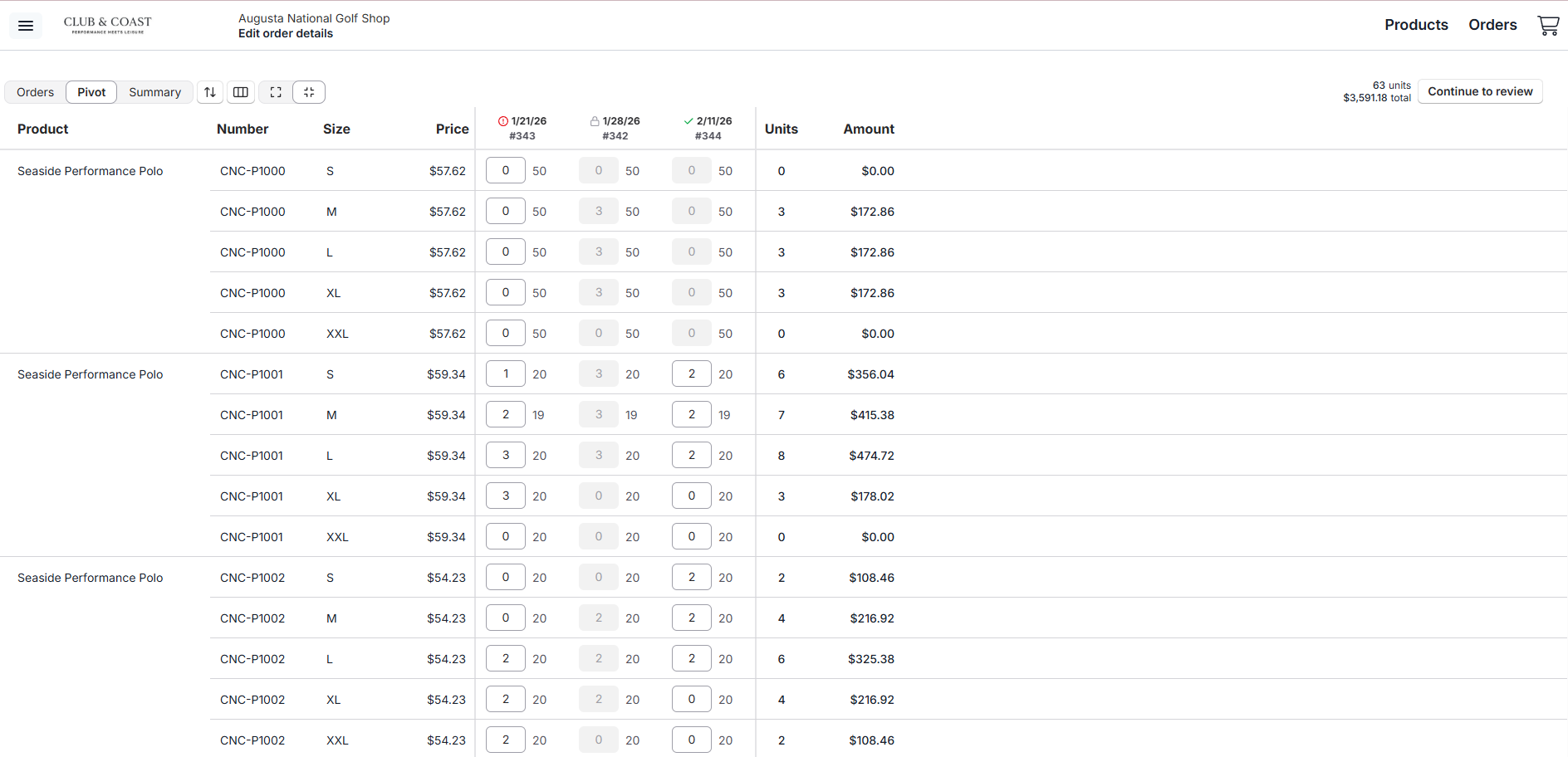
A condensed version of the Pivot view, focusing purely on quantity management without additional product details
Best for:
- Quick quantity adjustments
- Minimal scrolling on large orders
- Experienced users who know their products
- Final quantity review before submission
Key Differences from Standard Pivot:
- Condensed product information
- No copy size runs functionality
- Cannot add or remove products
- Streamlined for pure quantity entry
- Smaller row heights for more products on screen
When to Use:
- After all products are added to orders
- When you only need to adjust quantities
- For quick final reviews
- When working with familiar product lines
Note: Switch to standard Pivot or Orders view if you need to add/remove products or copy size runs
Summary View
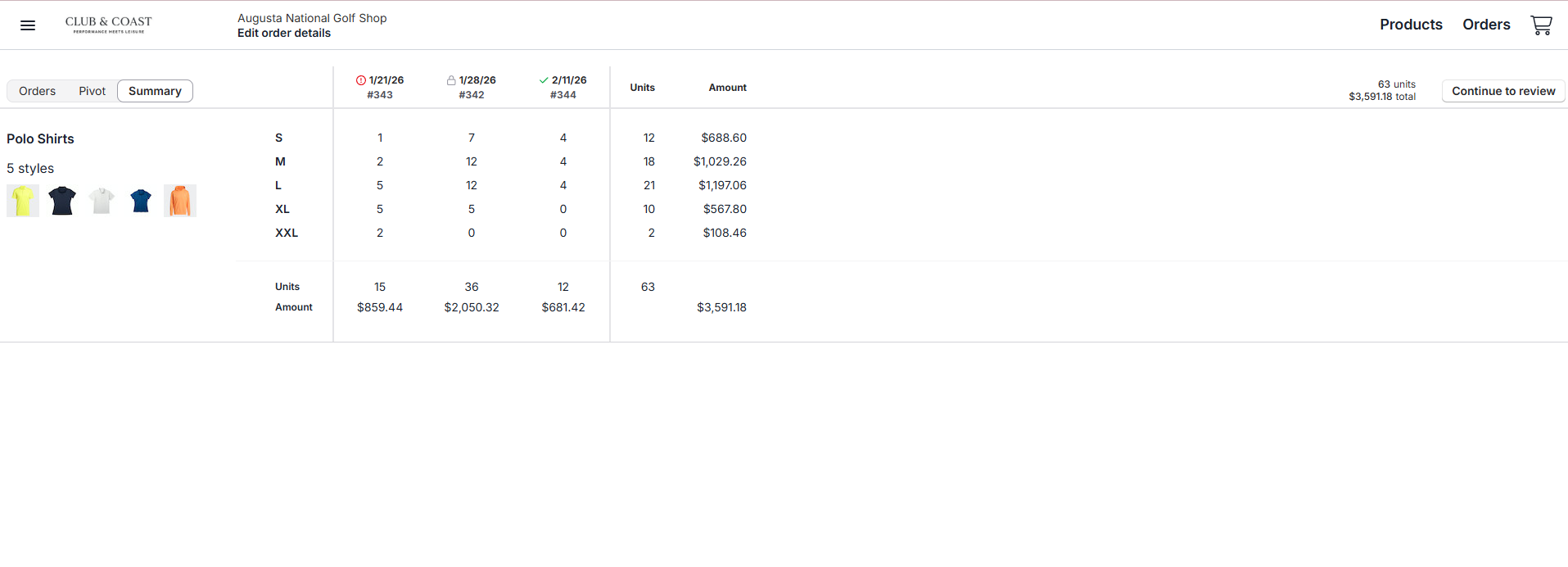
The Summary view provides a read-only overview of your entire order group, organized by product category
Best for:
- Final order review
- Budget verification
- Category-level analysis
- Presenting orders to customers
Display Features:
- Products grouped by category automatically
- Category subtotals with units and amounts
- Individual product thumbnails within categories
- Consolidated view across all orders
- Total units and dollar amounts per category
Limitations:
- View only - no editing capabilities
- Cannot adjust quantities
- Cannot add or remove products
- No sorting options (follows grouping from other views)
Use Cases:
- Final review before submission
- Sharing order summary with customers
- Verifying budget allocations by category
- Quick visual confirmation of order contents
Sorting and Grouping
How It Works
Sorting and grouping preferences persist across all cart views: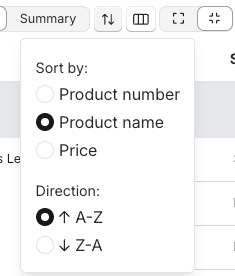
Sorting Options:
- Product number (default)
- Product name (A-Z or Z-A)
- Price (ascending or descending)
Grouping Options: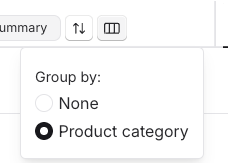
- None (default)
- Product category
Cross-View Persistence
- Set sorting/grouping in any view
- Automatically applies to other views
- Remains active during your session
- Saves as URL parameters for easy sharing
Example: Group by category in Orders view, switch to Pivot view, and the grouping remains active
Common Workflows
Workflow 1: Adding Customized Products
- Start in Orders view
- Add products with first customization
- Add same product again with different customization
- Review both line items separately
- Switch to Summary view for final review
Workflow 2: Multi-Date Order Planning
- Begin in Pivot view to see all dates
- Add base quantities across orders
- Switch to Compact Pivot for fine-tuning
- Tab through cells adjusting quantities
- Use Summary view for budget check
Workflow 3: Fixing Validation Errors
- See "Action required" indicator
- Stay in Orders view
- Click action required to see messages
- Address each validation error
- Verify corrections before proceeding
Tips and Best Practices
For Efficiency:
- Use keyboard shortcuts (Tab) in Pivot views
- Set up grouping before entering large orders
- Use Compact Pivot for final quantity passes
- Keep Orders view for complex customizations
For Accuracy:
- Always check Summary view before submission
- Address validation errors in Orders view immediately
- Use grouping to verify category allocations
- Review totals in multiple views for confirmation