
Managing Orders in the Orders Page
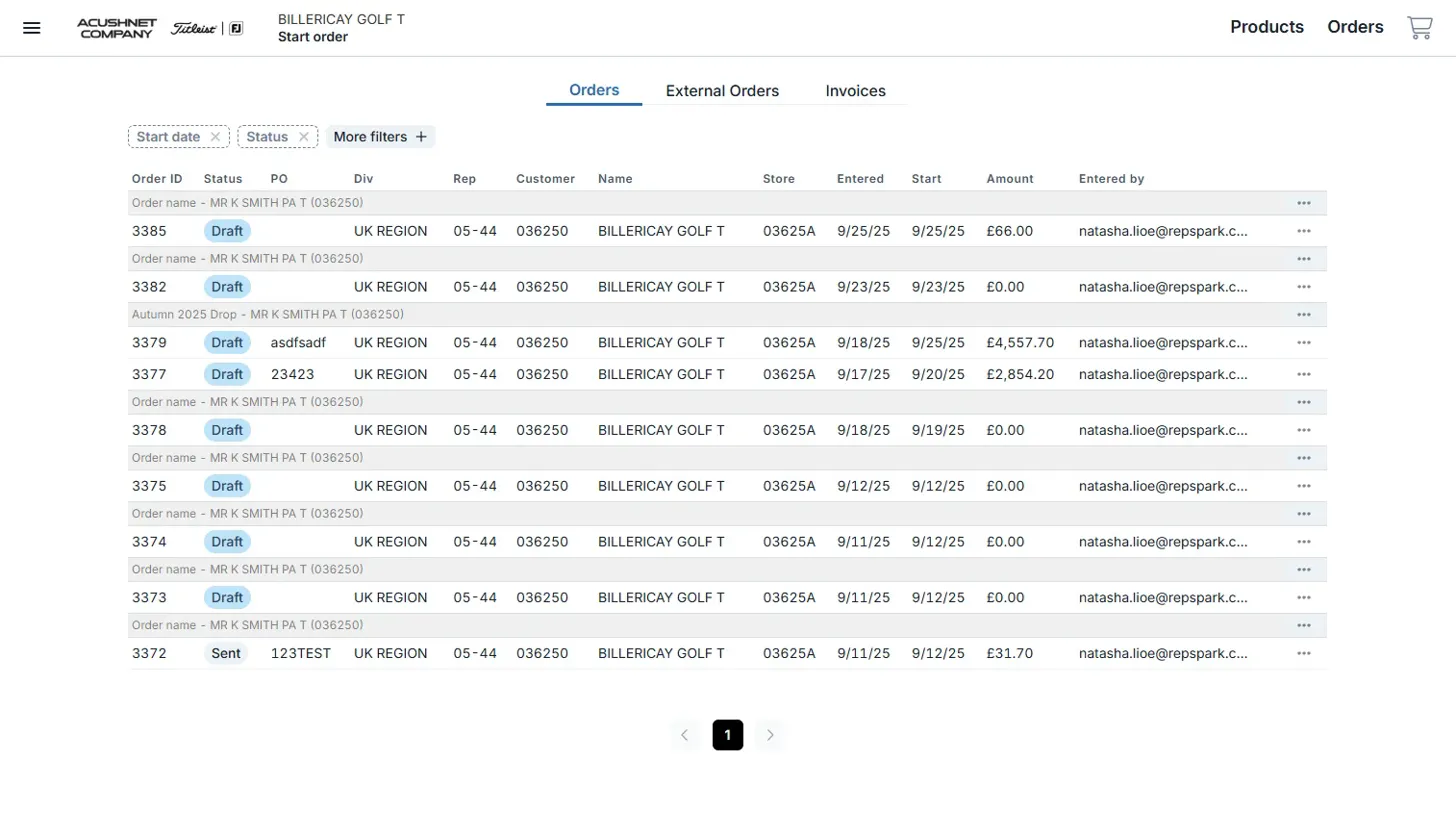
The Orders page is your central hub for viewing, filtering, and managing all orders created on RepSpark, as well as external orders synced from your brand's ERP system.
How it works
The Orders page displays all your orders in a comprehensive table view where you can filter, search, and take actions on individual orders or order groups. Orders are organized into groups (even single orders create a group) to help you manage related orders together and maintain organization across your purchasing workflow.
Before you start
Make sure you have:
- Access to the RepSpark platform
- Appropriate permissions to view and manage orders for your brand
- Understanding that orders may be in various stages of the purchasing process
Understanding Orders vs External Orders
Orders Tab
Orders created directly on RepSpark that can be in various statuses:
- Draft/Open: Orders you're still building that haven't been submitted yet. Products have been added to your cart and order details set, but the order hasn't been finalized
- Submitted: Orders that have been submitted on RepSpark but haven't been imported into the brand's ERP system yet
- Sent: Orders that have been submitted and retrieved by the brand's ERP system, but haven't been validated/confirmed yet. The order is presumably in the ERP but may still be processing
- Valid: Orders that have been successfully processed by the brand's ERP system and confirmed back to RepSpark. These orders typically have an ERP reference number you can use for tracking
External Orders Tab
Orders synced back from your brand's ERP system to RepSpark, which include:
- RepSpark orders that have been processed downstream in the brand's system
- Orders from other sales platforms that flow through the same ERP
Understanding Order Groups
Every order in RepSpark belongs to an order group:
- Order groups act as containers or "buckets" for related orders
- They function as a "parent" with individual orders as "children"
- Even single orders are automatically placed in an order group
- Order groups help you organize related purchases and manage them together
Using Filters
Available Filters
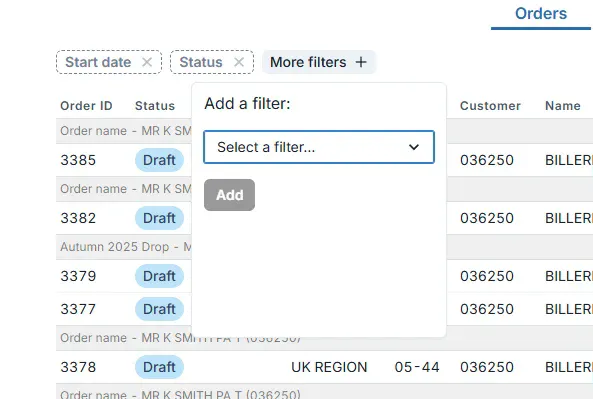
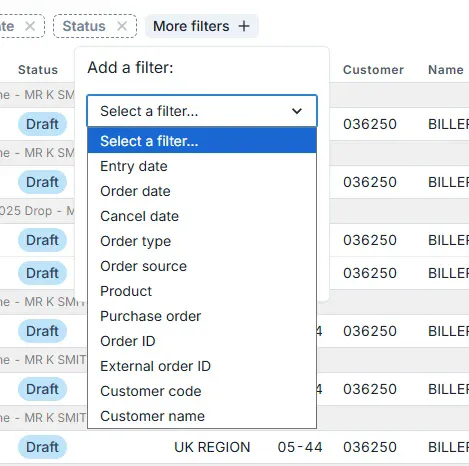
You can filter your orders using these options:
Date Filters:
- Start date: Filter by when the order process began
- Entry date: Filter by when the order was entered into the system
Order Information:
- Status: Filter by order status (Draft, Sent, etc.)
- Order date: Filter by the date the order was placed
- Cancel date: Filter by cancellation date
- Order type: Filter by the type of order
- Order source: Filter by where the order originated
- Product: Filter by specific products in orders
- Purchase order: Filter by PO numbers
- Order ID: Filter by specific order IDs
- External order ID: Filter by external system order IDs
Customer Information:
- Customer code: Filter by customer identification codes
- Customer name: Filter by customer names
How to Apply Filters
Step 1 - Access the filter menu Click the More filters + button to open the filter dropdown menu.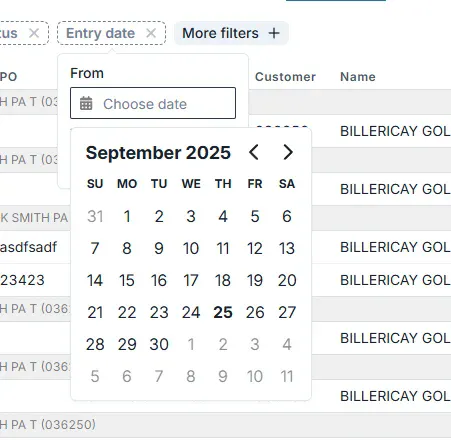
Step 2 - Select your filter type Choose from the dropdown menu which type of filter you want to apply (e.g., Status, Entry date, Customer name, etc.).
Step 3 - Set your filter criteria Depending on the filter type:
- For date filters: Use the calendar picker to select your date range
- For dropdown filters: Select the appropriate option
- For text filters: Enter your search criteria
Step 4 - Add the filter Click the Add button to apply the filter to your orders view.
Tip: You can apply multiple filters at once to narrow down your results further. Each active filter will appear as a tag that you can remove individually.
Direct Linking to Filtered Views
You can link directly to specific filtered views using URL parameters. This allows you to bookmark frequently used filter combinations or share specific order views with team members.
Working with Draft Orders
Re-entering Draft Orders
When you click on a draft order, you'll be taken back into the ordering flow where you left off:
- Products page: If you were still selecting products
- Cart page: If you had products selected but hadn't finished configuring
- Review page: If you were in the final review stage before submission
This allows you to seamlessly continue building orders without losing your progress.
Order Actions
Individual Order Actions
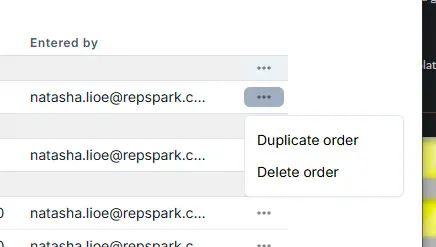
For each individual order, you can:
- Duplicate: Create a copy of the order
- Delete: Remove the order (available for draft orders)
Order Group Actions
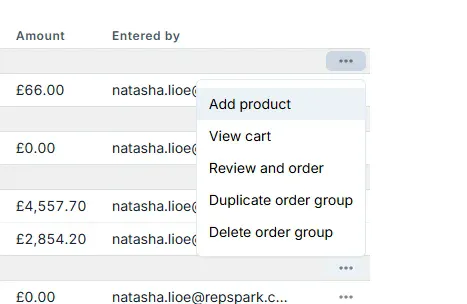
For order groups, you can:
- Duplicate order group: Create a copy of the entire group and all its orders
- Delete order group: Remove the entire group and all orders within it
- Add products: Add new products to the group
- View cart: See all products across the order group
- Review and order: Move to the review stage for the entire group
Duplicating Order Groups
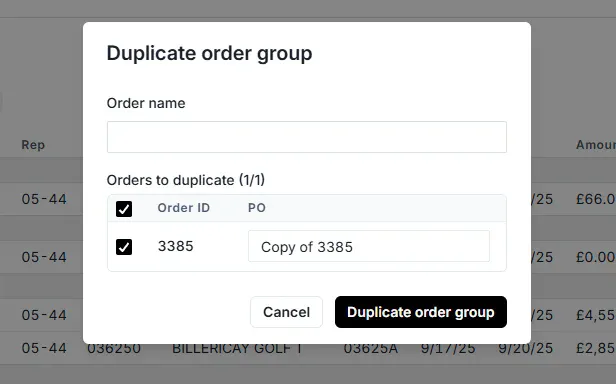
When duplicating an order group:
Step 1 - Select duplicate option Click the three-dot menu next to the order group and select Duplicate order group.
Step 2 - Customize the new order group In the duplication dialog:
- Order name: Enter a new name for the duplicated order group
- Individual order names: Rename each order within the group
- PO numbers: Assign new PO numbers as needed
Step 3 - Confirm duplication Click Duplicate order group to create the copies with your specified names and PO numbers.
Accessing Order Details
Draft Orders
Clicking on a draft order takes you to the Cart page where you can continue editing the order.
Submitted Orders
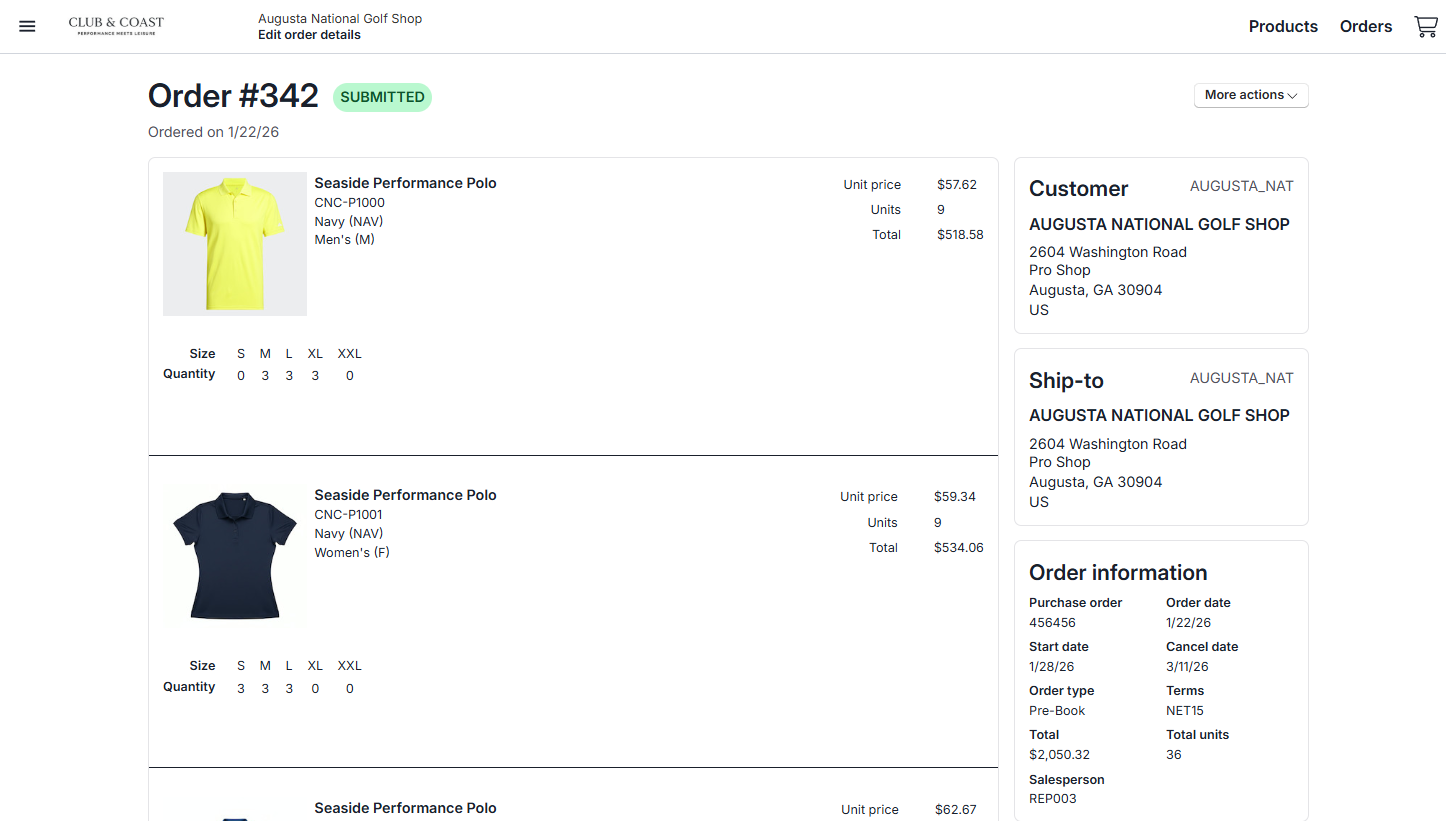
Clicking on sent, submitted, or other completed orders takes you to the Order Details page where you can:
- View complete order information
- See customer and shipping details
- Review order totals and line items
- Access order status and tracking information
Deep Linking
You can link directly to specific order details pages using the order ID in the URL, making it easy to share or bookmark specific orders.