
Instructions
Step 1. Click “Catalog/Assortments”
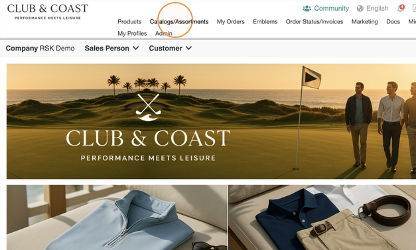
Step 2. Click “My Assortments”
Step 3. Click the drop down arrow for “Assortments”
Step 4. Click “…” & Click “Create Catalog”
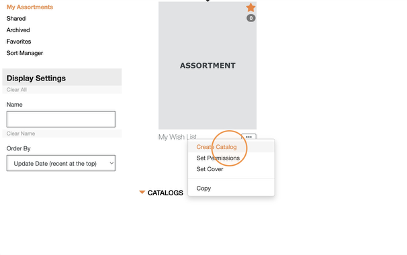
Step 5. Name your catalog & select your page orientation, then continue. Step 6. Select full cover page & continue.
Step 7. Select any product display layout, as this wont affect your page when uploading pages. Scroll to the bottom & click Create.
Step 8. Upload cover page.
Step 9. Scroll to the next page and delete the page with a product display layout.
Step 10. Add new page.
Step 11. Select Feature Page & Select Feature page with full image.
Step 12. Upload or find your image for the page with the tabs on the bottom of the screen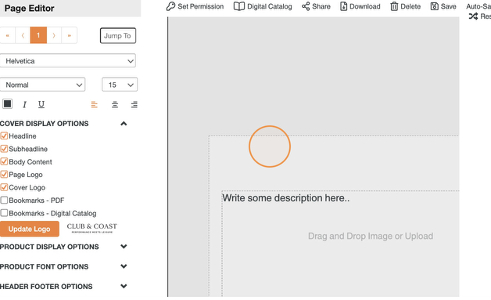
Step 13. Drag the image to the page & once loaded click the minimize arrow to the right.
Step 14. Click the price tag icon & search for your product. You will select where you want that price tag to show before searching for the product.
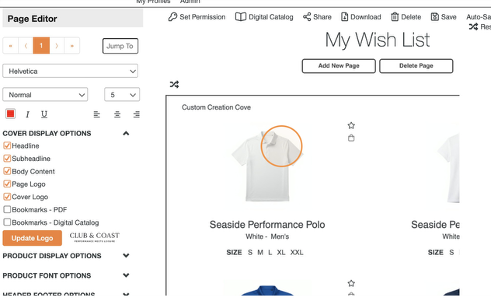
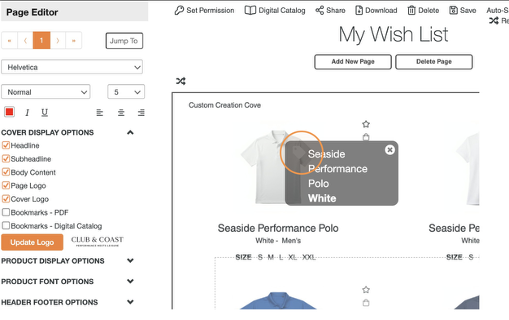
You can now repeat these steps until you are finishing creating your catalog.
Once you are done creating your catalog, you now can click the save icon at the top of the page.
Click the “Digital Catalog” Tab at the top of the page & your catalog is now shoppable.