
Overview
Assortments are curated product collections that help you organize your catalog and make shopping easier for your customers. You can create custom assortments, add products to them, and control who can view and edit them.
How it works
Assortments allow brand admins to group products together for specific purposes—like seasonal collections, customer-specific selections, or product categories. Once created, you can share these assortments with specific roles or individuals, making it easy for sales reps and customers to find and order the right products.
Before you start
Make sure you have the necessary permissions to create and manage assortments. This feature is typically available to brand admins and users with appropriate management roles.
Creating an assortment
Step 1 - Navigate to the Assortments page
Go to Products > Assortments or navigate directly to /<brand-name>/assortments
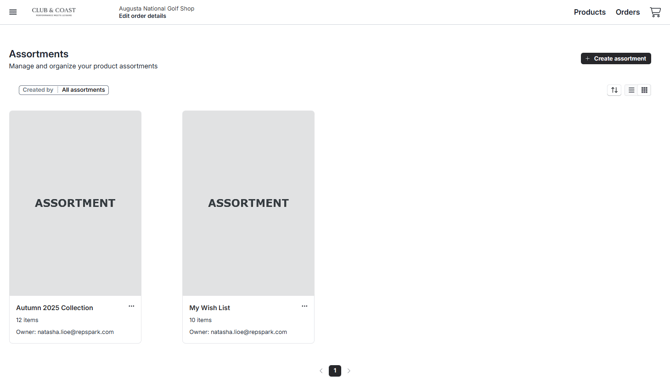
Step 2 - Click the Create assortment button
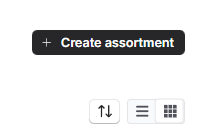
Click the + Create assortment button in the top right corner of the page.
Step 3 - Enter assortment details
In the modal that appears, enter a name for your assortment and add an optional description to help others understand what products belong in this collection.
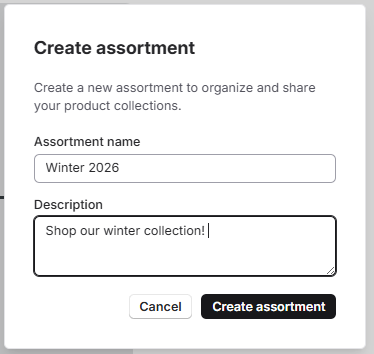
Click Create assortment to save.
Step 4 - Add products to your assortment
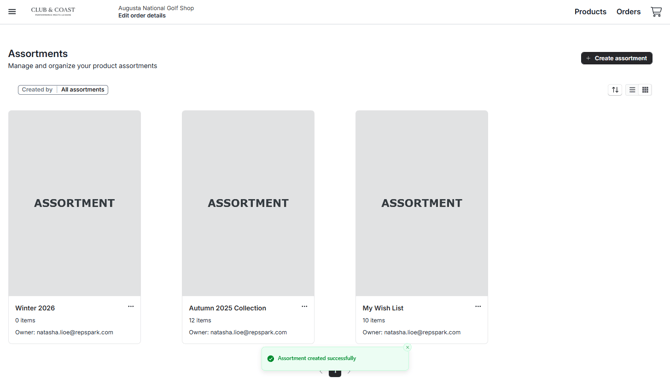
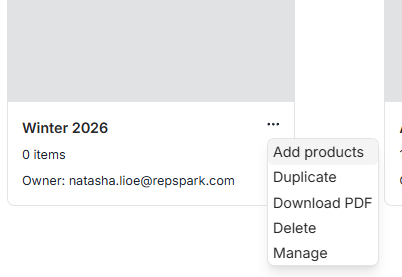
After creating your assortment, click Add products from the assortment card menu (three dots) or click Manage to enter the assortment editing view.
Step 5 - Select products from the catalog
You'll be taken to the products page where you can browse and add products. Click Add to assortment next to any product you want to include.
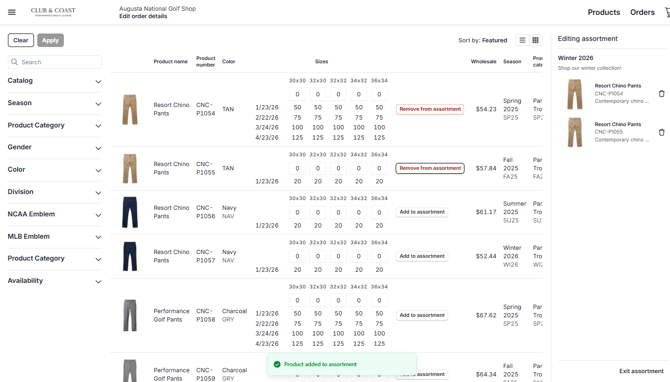
Tip: Use the filters on the left sidebar to narrow down your product selection by catalog, season, category, color, or other attributes.
Step 6 - Review and manage products in the sidebar
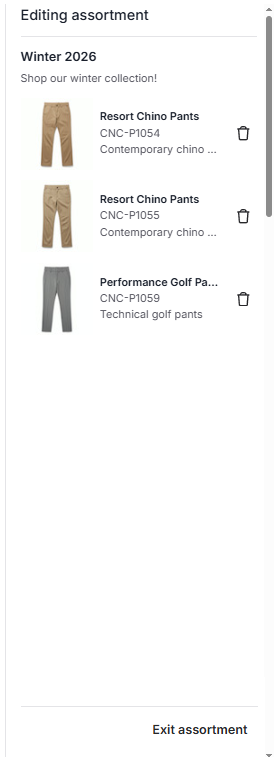
As you add products, they appear in the Editing assortment sidebar on the right. You can remove products from either the products page by clicking Remove from assortment, or by clicking the trash icon next to the product in the sidebar.
Step 7 - Exit when finished
Your changes are automatically saved as you work. When you're finished adding products, click Exit assortment at the bottom of the sidebar. You can always return later to add or remove more products.
Exiting will take you back to your always-on cart.
Managing assortment details
Step 1 - Open the assortment management page
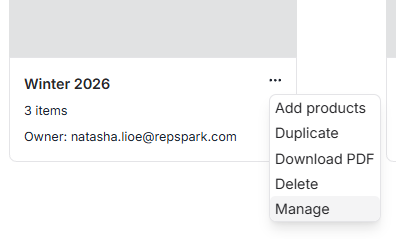
From the Assortments page, click the three-dot menu on any assortment card and select Manage, or click the assortment name to open the management page directly.
Step 2 - Edit name and description
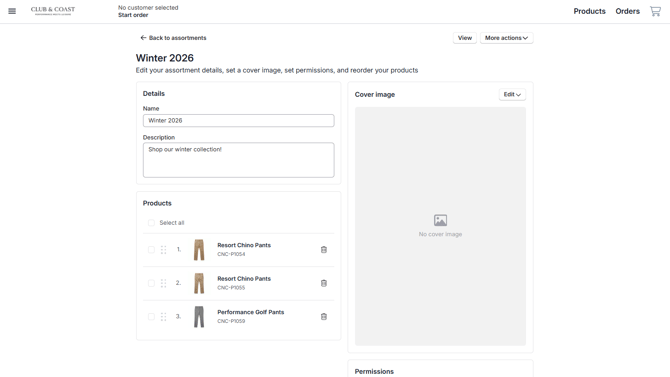
Update the assortment name or description in the Details section. Changes save automatically.
Step 3 - Set a cover image
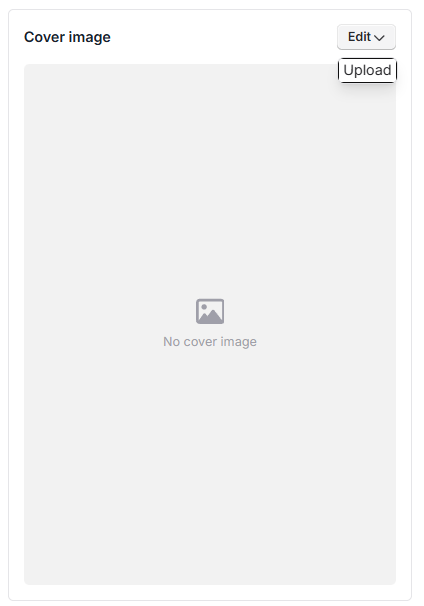
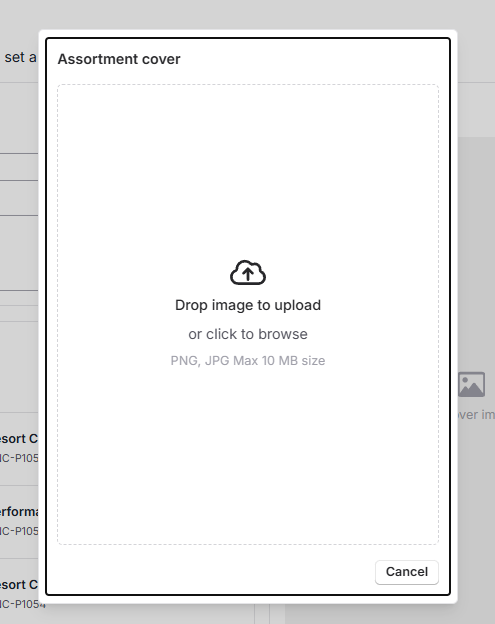
Click Edit in the Cover image section, then click Upload or drag and drop an image. Use PNG or JPG format, maximum 10 MB.
Step 4 - Reorder products
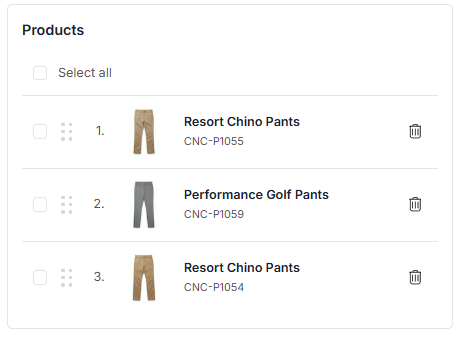
In the Products section, drag and drop products using the handle icon on the left to reorder them. The order you set here determines how products appear when customers shop this assortment.
Step 5 - Set permissions
In the Permissions section, control who can view and edit your assortment:
- Share with Roles: Select permission levels (None, View, or View and edit) for different user roles like Admin, Sales Rep, Manager, or Customer
- Share via Email: Enter specific email addresses to grant access.
- Copy link: Share a direct link to the assortment. You can use this to link to the assortment from the branded landing page, or directly share to a customer or coworker.
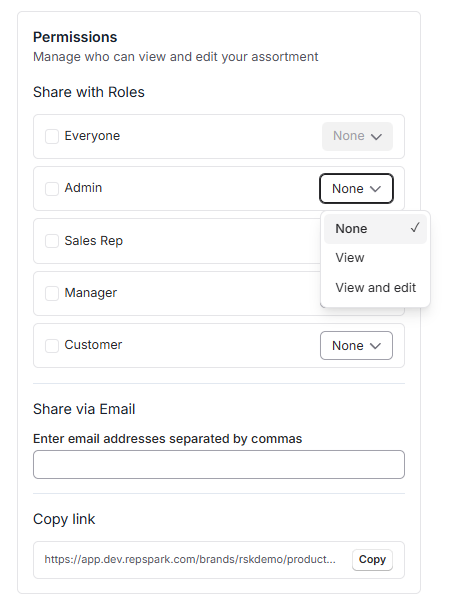
Tip: Set Customer permissions to "View" to make this assortment visible in your storefront, allowing customers to shop directly from the collection.
Step 6 - Save your assortment
When you make a change, you can save or discard your changes at the top. Click Save to save your changes.

Common issues and solutions
Q: I can't find the Create assortment button
You may not have the necessary permissions to create assortments. Contact your brand admin to request access.
Q: Products aren't showing up in my assortment
Make sure you clicked Add to assortment on the products page. Check the sidebar to confirm products were added successfully.
Q: How do I share an assortment with specific customers?
Use the Share via Email option in the Permissions section to grant access to specific email addresses, or use the Copy link feature to send a direct link.